
Best Practices for Device Security That Work Daily
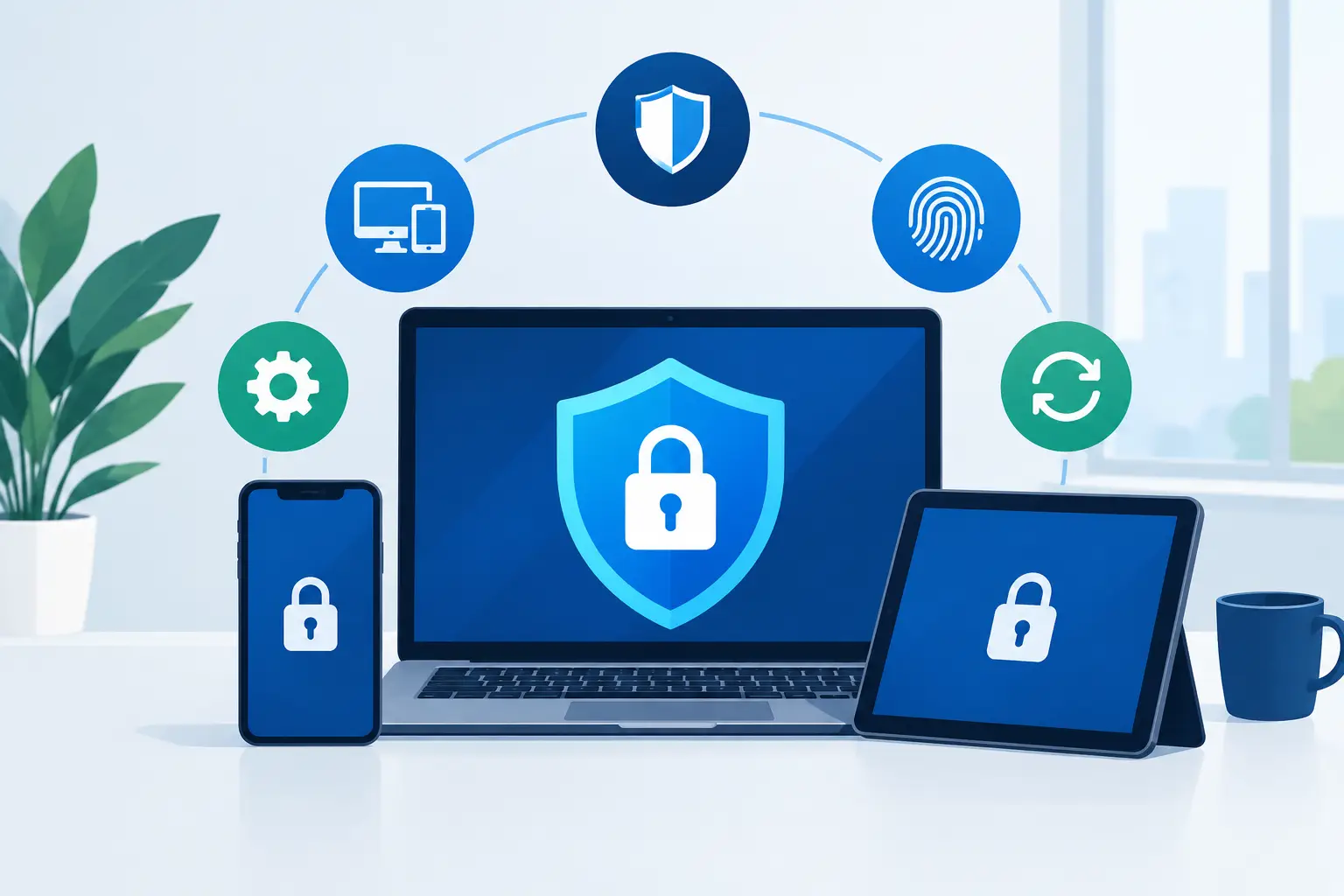
A lost phone, an email attachment opened in a hurry, or a laptop that misses a few updates can become much more than a small inconvenience. The best practices for device security help protect your photos, financial information, work files, customer data, and the time you would otherwise spend recovering from a preventable problem. The good news is that practical security does not require a computer science degree. It requires a few habits that work together.
Best Practices for Device Security at Home and Work
Device security starts with knowing that every connected device deserves attention. That includes desktop computers, laptops, tablets, phones, printers, smart TVs, gaming consoles, and the router connecting them all. A phone may hold access to your email and bank account. A home computer may contain years of tax documents. For a small business, one employee laptop can provide a path to shared files, cloud accounts, and customer information.
The goal is not to make technology frustrating to use. It is to add sensible layers of protection, so one mistake or one lost device does not become a major disruption.
Keep operating systems and apps up to date
Updates are not just about new features or a different-looking menu. They frequently fix security weaknesses that criminals already know how to exploit. When an update sits unanswered for weeks, it gives those weaknesses more time to become a problem.
Turn on automatic updates for your computer, phone, tablet, web browser, and commonly used apps. Restart devices when prompted instead of postponing the message indefinitely. If automatic updates are not appropriate for a business device because of specialized software, set a regular schedule for testing and applying them. That approach takes a little coordination, but it is far safer than ignoring patches altogether.
Older devices require a different decision. If the manufacturer no longer provides security updates, antivirus software alone cannot fully protect it. In that case, replacing the device, limiting its access to sensitive accounts, or using it only for low-risk tasks may be the sensible move.
Use unique passwords and multi-factor authentication
Reusing a password is convenient until a website suffers a breach. Criminals routinely test exposed passwords on email, shopping, banking, and work accounts because they know many people reuse them. One compromised password can open several doors.
Use a long, unique password for every important account. A password manager can create and remember strong passwords without requiring you to memorize dozens of random character strings. The master password for that manager should be long, unique, and protected carefully.
Then turn on multi-factor authentication, especially for email, banking, cloud storage, social media, and business software. A text code is better than no second factor, though an authentication app or security key is generally a stronger choice. It adds a small step when signing in from a new device, but that minor inconvenience can stop a stolen password from becoming an account takeover.
Your email account deserves special attention. It is often the reset point for other accounts. If someone controls your email, they may be able to reset passwords elsewhere without your permission.
Lock, encrypt, and track mobile devices
Phones and tablets are easy to misplace, easy to steal, and packed with private information. A simple screen lock is one of the highest-value protections available. Use a PIN, password, fingerprint, or face unlock, and set the screen to lock automatically after a short period of inactivity.
Enable device encryption if it is not already on. Encryption helps keep stored information unreadable if someone gets physical possession of the device. Also enable the built-in option to locate, lock, or remotely erase a missing phone, tablet, or computer. Test that you can sign in to the account that manages this feature before you need it.
Remote erase is a serious step, not a first reaction to a phone left on the kitchen counter. But if a device is truly gone and contains work information, saved passwords, or sensitive personal files, quick action matters. For businesses, establish who has the authority to remotely lock or erase company devices before an incident occurs.
Treat email, texts, and pop-ups with healthy skepticism
Most security problems do not begin with a dramatic movie-style hack. They begin with a convincing message: a delivery notice, an urgent invoice, a password reset request, or an email that appears to come from a coworker.
Pause before clicking links, opening attachments, or sharing a verification code. Look closely at the sender address, the wording, and the request itself. A real organization will not ask you to provide a multi-factor code so it can "verify" your identity. That code is for you alone.
Be equally cautious with unexpected support pop-ups and phone calls claiming your computer is infected. Do not grant remote access to someone who contacts you out of the blue. Close the browser window or hang up, then contact a trusted provider using a number you found independently.
For a business, employees should have a simple way to report suspicious messages without embarrassment. Reporting a questionable email is always better than quietly clicking it because someone is worried about bothering the IT team.
Protect the network behind your devices
Your router is the front door to your home or office network. Change its default administrator password, install its firmware updates, and use WPA2 or WPA3 Wi-Fi security with a strong network password. Avoid leaving a guest network open without a password, particularly in an office where customer information and shared devices may be present.
A separate guest network is helpful for visitors and smart home devices such as cameras, speakers, and TVs. These devices may not receive updates as consistently as computers and phones. Keeping them separate reduces the chance that one weak device can reach the systems that hold your important files.
Public Wi-Fi requires a little extra care. Do not access financial accounts or sensitive business systems on an unsecured public network unless you understand the protections in place. When possible, use your phone's hotspot, wait for a trusted connection, or use an approved business VPN.
Back up files before you need them
Security is not only about keeping people out. It is also about being able to recover when something goes wrong. Ransomware, hardware failure, accidental deletion, water damage, and theft can all make files unavailable.
Keep backups of important personal documents, family photos, and business data. A useful approach includes a local backup for quick recovery and a separate cloud or off-site copy in case the computer or office is damaged. Backups should run regularly, but they also need occasional testing. A backup is only useful if you can restore the files you need.
Businesses should decide which systems must be restored first, who will handle recovery, and how long the organization can operate without each service. A small office may not need an enterprise-level setup, but it does need a realistic recovery plan.
Build security into everyday device use
Security tools help, but consistent daily behavior makes those tools more effective. Install reputable security software where appropriate, keep browser extensions to a minimum, and download software only from trusted sources. Remove programs you no longer use, especially remote-access tools or old trial software.
For shared household computers, give each person a separate user account rather than sharing one administrator login. For businesses, employees should use their own accounts and should only have access to the files and systems they need for their roles. This reduces accidental changes and limits the damage if one account is compromised.
It also helps to review what is connected to your accounts a few times a year. Remove old devices from email, cloud storage, shopping sites, and work applications. If a former employee still appears in a business platform, revoke access promptly. Good offboarding is device security, too.
Know when a device needs professional attention
Some warning signs should not wait: repeated password prompts you did not request, an antivirus alert that will not clear, unknown remote-access software, files that suddenly will not open, or a device that becomes unusually slow after a suspicious click. Disconnecting the device from Wi-Fi can limit further damage while you get help.
Avoid trying every online fix at once. Deleting the wrong files or continuing to sign in can make recovery harder. A qualified technician can check for malware, protect recoverable data, secure accounts, and explain what happened in plain language.
For local homeowners and small businesses, NerdsToGo Greensboro can help sort out the practical next step, whether that means cleaning up a compromised computer, setting up safer backups, securing a network, or creating an ongoing plan for managed devices. You do not have to guess which warning matters.
Device security works best when it becomes part of normal maintenance, like locking the door and saving a copy of an important document. Pick one improvement this week - turn on multi-factor authentication, run updates, or verify a backup - and build from there.
Need IT help in Greensboro?
Talk to your local NerdsToGo team.