
Can Ransomware Infect Cloud Backups? Yes.
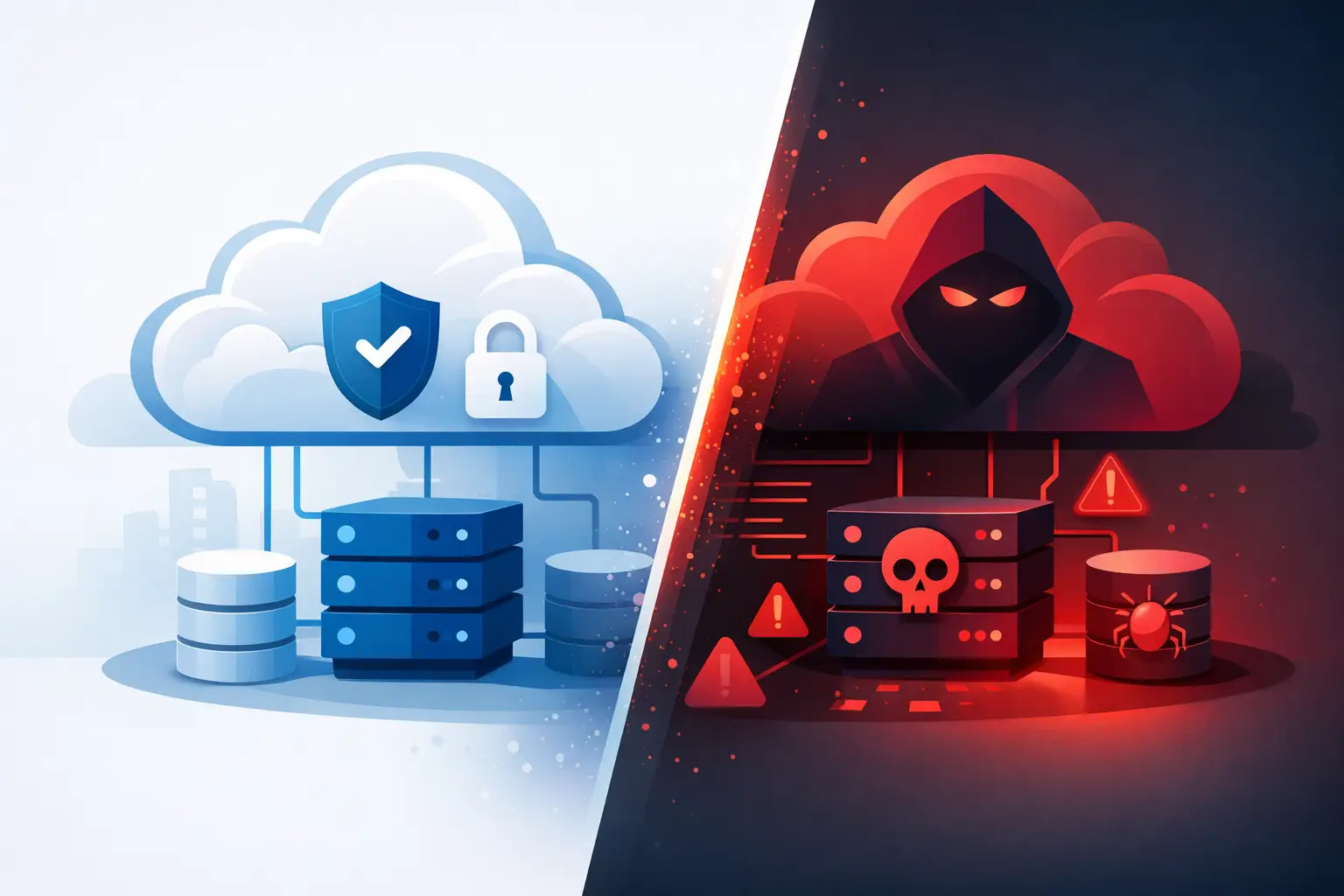
A ransomware attack rarely begins with a dramatic warning screen. It may start with one convincing email, a reused password, or a remote access tool that was never properly secured. Once attackers get inside, many people ask the same urgent question: can ransomware infect cloud backups? Unfortunately, yes. Cloud storage and cloud backup can be affected when they are connected too closely to the systems, accounts, or files an attacker controls.
That does not mean cloud backups are a bad idea. Quite the opposite. The right cloud backup setup can be one of the best ways to recover from ransomware. The difference comes down to how it is configured, monitored, and protected.
Can Ransomware Infect Cloud Backups?
Ransomware itself does not need to "break into the cloud" in a movie-style hacking scene. If your cloud backup continuously syncs files from a computer or server, it may copy encrypted versions of those files after an attack. If an attacker steals an administrator password, they may also be able to delete backups, change retention settings, or lock your team out of the backup account.
A simple file-syncing service is especially vulnerable to this problem. If a document is encrypted on a laptop and the service immediately syncs that new version, the cloud copy can be encrypted too. The original may remain available in version history for a limited period, but that is not the same as having a dedicated backup plan.
For small businesses, the risk can extend beyond shared folders. Attackers may target cloud email, accounting data, customer records, network drives, virtual servers, and software-as-a-service platforms. Home users can face the same issue with family photos, schoolwork, tax documents, and important personal files.
Cloud Storage Is Not Always a Backup
This distinction matters because cloud storage and cloud backup serve different jobs.
Cloud storage is built for access and collaboration. It makes it easy to open a file from your office, home, or phone. It often keeps recent versions, which can help after an accidental edit or a small ransomware event. But its main purpose is keeping current files available.
A true backup is built for recovery. It keeps separate copies, preserves them for a defined period, and gives you a way to restore data after deletion, corruption, hardware failure, or a cyberattack. A good backup system should let you go back to a clean point before the attack happened.
Version history can be useful, but it has limits. Retention may be short. A large number of changed files can make manual recovery slow. Some attackers know how to delete snapshots or versions when they gain enough access. If your entire recovery plan depends on one synced cloud folder, you may discover those limits at the worst possible time.
How Attackers Reach Backup Data
Ransomware groups understand that backups are their biggest obstacle. If they can damage recovery options, they have more leverage to demand payment.
The most common route is compromised credentials. A stolen Microsoft 365, Google Workspace, backup portal, or remote access password can give an attacker a path into cloud resources. Password reuse makes this worse. A password exposed in an unrelated breach can become the key to a business account if it was used again.
Another route is excessive permissions. An employee may need to access a shared folder, but they usually do not need the ability to change backup policies or erase every recovery point. When a single account has broad control over file storage and backups, one compromised login can cause a much bigger problem.
Backup software can also be affected if it runs on a server that has been infected. Some ransomware looks for backup applications, attached drives, and network shares before it begins encrypting files. More advanced attacks may remain hidden for days or weeks, changing or stealing data before the obvious encryption event.
What Makes Cloud Backups Safer Against Ransomware?
The goal is not to find a magic product that promises ransomware can never touch your data. The goal is to make recovery copies difficult to alter, delete, or reach from an infected device.
Start with separation. Your backup should not rely on the same account, password, and permissions as the daily systems it protects. Separate backup administrator credentials reduce the chance that one stolen login can take down everything.
Multi-factor authentication is another basic but effective safeguard. A password alone is easy to steal through phishing, malware, or password reuse. Requiring a second verification step makes unauthorized backup-account access much harder.
Retention and immutability are equally important. Retention means backup copies are kept for a set period instead of being immediately replaced. Immutability means a backup cannot be changed or deleted during a protected window, even by many administrative accounts. The exact options depend on the backup provider, but the idea is straightforward: preserve clean recovery points long enough to be useful.
It also helps to follow the 3-2-1 approach: keep at least three copies of important data, on two different types of storage, with one copy kept separate from your primary environment. For some businesses, that separate copy may be offline, offsite, or stored in an immutable cloud repository. The best design depends on your budget, compliance requirements, and how quickly you need to resume operations.
A Recovery Plan Has to Be Tested
A backup is only valuable if you can restore from it. Many organizations discover too late that backups were incomplete, the restore process was too slow, or the most recent clean copy was older than expected.
Test recovery on a regular schedule. This does not always require shutting down the whole office. You can restore a sample folder, a mailbox, a database, or a virtual machine in a safe environment. The test should confirm that the files open, the data is complete, and staff know who is responsible for making recovery decisions.
Think through practical questions before an incident. Which systems must be restored first? Can your team operate temporarily without email, shared files, or a line-of-business application? Who has the backup credentials if the primary administrator is unavailable? How will you communicate with employees and customers if normal systems are offline?
For a homeowner or remote worker, the test can be simpler: make sure you can find and restore a few documents and photos without guessing. Knowing where the backup lives and how long it keeps older versions can save a lot of stress.
What to Do If Ransomware Hits
If you suspect ransomware, speed matters, but rushing into a restore can make the situation worse. Disconnect affected computers from the network and Wi-Fi if you can do so safely. Do not immediately reconnect devices just to check whether files are working.
Next, preserve the evidence. Take a photo of the ransom message and write down what you noticed, including the time, affected devices, and suspicious emails or login alerts. Avoid deleting files, rebooting systems repeatedly, or running random cleanup tools before the situation is assessed.
Your next steps should focus on containment and clean recovery:
- Isolate infected computers, servers, and shared drives from the network.
- Contact your IT support team or a qualified cybersecurity professional to identify the scope of the incident.
- Change compromised passwords from a known-clean device, especially administrator and backup-account credentials.
- Verify which backup point was created before the attack and scan restored systems before returning them to service.
- Notify appropriate legal, insurance, and regulatory contacts if customer, employee, financial, or health information may be involved.
Do not assume every backup is safe just because it has a recent date. Attackers may have had access before encryption began. A careful review helps identify the last known clean recovery point.
When Professional Help Makes Sense
For a small business, ransomware is not only a file problem. It can interrupt payroll, scheduling, customer service, invoicing, and phone systems. A managed IT partner can help build backup separation, manage account access, monitor threats, and document a recovery plan that fits the way your office actually works.
NerdsToGo Greensboro can help local businesses and households review their current backup setup, identify gaps, and make a practical plan before an emergency forces quick decisions. You do not need to become a cybersecurity expert to ask the right questions or improve your protection.
The best time to find out whether your cloud backups can recover from ransomware is during a calm afternoon, not while your files are unreadable and your business is waiting. A few sensible safeguards now can turn a major disruption into a recoverable problem.
Need IT help in Greensboro?
Talk to your local NerdsToGo team.