
Cloud Backup Versus External Drives Compared
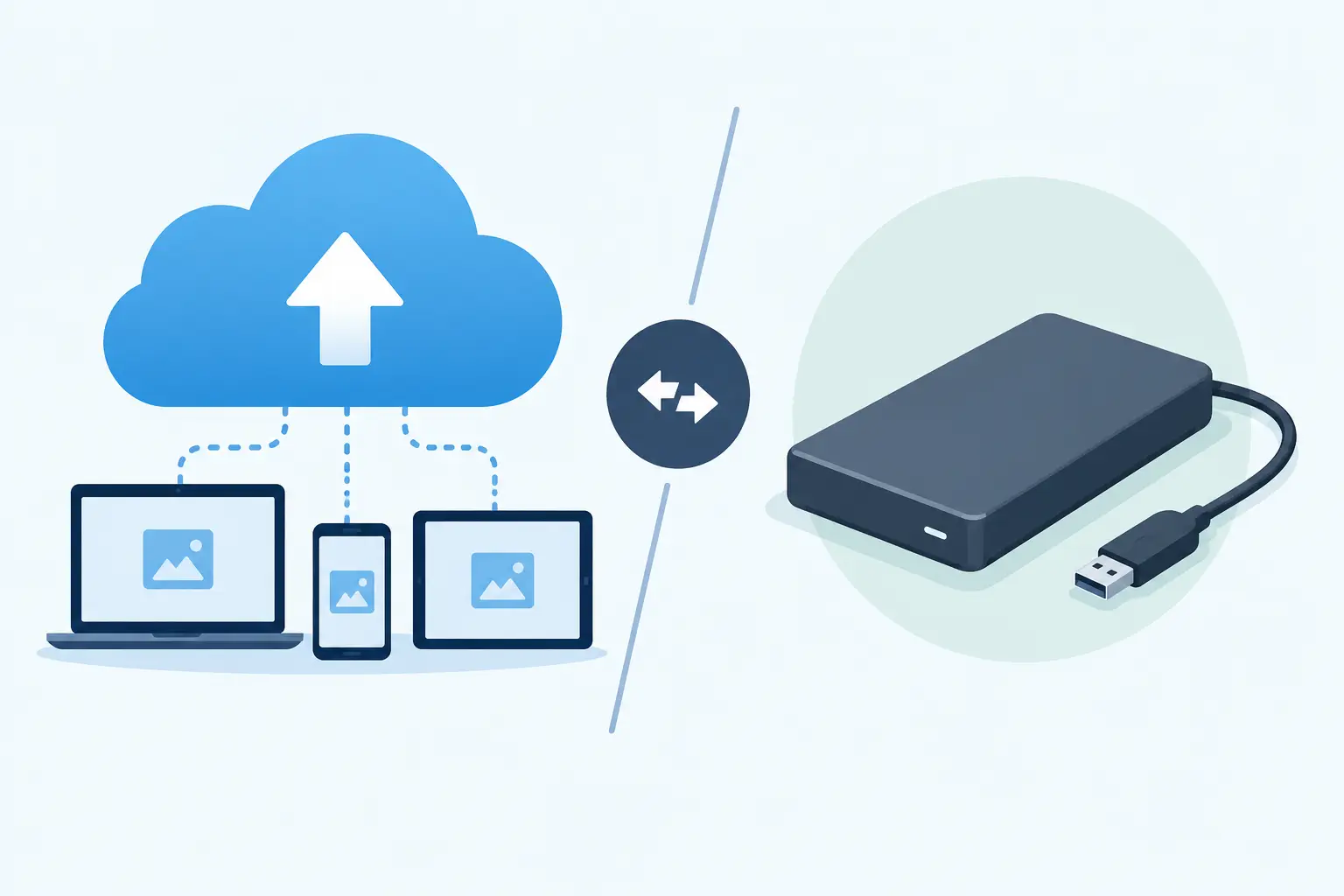
That family photo folder, last semester’s paper, QuickBooks file, or customer proposal may be sitting in exactly one place right now: the computer you use every day. If that computer fails, is stolen, gets hit with ransomware, or simply will not start, the real question is not whether you had storage. It is whether you can get your files back. Cloud backup versus external drives is a practical decision about recovery, cost, convenience, and how much risk you are willing to carry.
For many Greensboro and High Point households and small businesses, the best answer is not choosing one method and forgetting the other. It is choosing protection that fits the value of the data, the amount of downtime you can tolerate, and how reliably the backup will actually happen.
Cloud Backup Versus External Drives: The Core Difference
An external drive is a physical device, usually connected by USB, that stores a copy of your files. You can back up documents, photos, videos, and even a full computer image to it. It is a straightforward option because the drive stays under your control and restores can be fast when it is nearby and working.
Cloud backup sends encrypted copies of selected files, folders, or entire systems through your internet connection to secure remote servers. Depending on the service and plan, it can run automatically in the background and keep older file versions. If your laptop is damaged at home or your office has a hardware failure, you can restore data to a replacement device without needing the original computer or backup drive to survive.
The key distinction is location. An external drive is usually stored close to the computer. Cloud backup keeps another copy away from the location where the problem occurred.
When an External Drive Makes Sense
External drives are useful, affordable, and often very fast. A photographer with hundreds of gigabytes of images, a student with large media projects, or a business that needs to restore a large archive quickly may appreciate having a local copy available. You are not waiting for a large download, and you are not dependent on internet speed to access that backup.
They are also a sensible first step for someone who has no backup at all. A properly configured external drive can protect against a failed internal hard drive, accidental deletion, or a bad software update. Many computers include built-in backup tools that can schedule regular backups to a connected drive.
But an external drive only works when it is connected, has enough free space, and is checked occasionally. A drive left in a desk drawer beside the computer can be lost in the same theft, fire, water leak, or electrical event that affects the computer. External drives can also fail without much warning. They are hardware, after all.
For that reason, an external drive should not be treated as a one-and-done purchase. Test that you can open your backed-up files. Make sure the drive is not showing error messages. Keep it in a different room or, better yet, a different location when possible.
Where Cloud Backup Earns Its Keep
Cloud backup is especially helpful when consistent habits are hard to maintain. Once it is set up correctly, it can back up new and changed files automatically. That means the report you finished Tuesday or the customer spreadsheet updated this morning is more likely to be protected without someone remembering to plug in a drive.
The off-site copy is the larger advantage. If a ransomware attack encrypts local files and attached storage, an external drive connected at the wrong moment can be affected too. A quality cloud backup service may keep version history, allowing you to restore a clean version from before the attack. Versioning is also useful when a file is changed or deleted by mistake and the mistake is not noticed right away.
Cloud backup can make remote work easier as well. A team member whose laptop dies may be able to retrieve necessary files on a replacement device rather than waiting for an old drive to be located and connected. For small businesses, that can mean less downtime and fewer stressful calls when an important file is suddenly unavailable.
There are trade-offs. Initial cloud backups can take time, especially with slow upload speeds or very large amounts of data. Restoring a full computer over the internet may also take longer than restoring from a local drive. Monthly subscription costs add up, and not every cloud storage account is a true backup service.
Cloud Storage Is Not Always Cloud Backup
This is a common point of confusion. Services that sync files between devices are useful, but syncing is not automatically the same as backing up. If you delete a file from a synced folder, that deletion may quickly sync everywhere. If ransomware encrypts a synced file, the encrypted version may sync too.
Some cloud storage services offer recycle bins and file version history, which provide valuable protection. Still, the settings, retention period, and coverage matter. A dedicated backup system is designed around recovery. It should clearly show what is being backed up, how long versions are retained, and how files will be restored.
Before relying on any service, ask a simple question: if this computer disappeared tonight, could I restore the files I need tomorrow? If the answer is unclear, the setup needs a closer look.
Security and Privacy Depend on Setup
Neither option is automatically safer just because it is local or online. An external drive can be encrypted, protected with a strong password, and stored securely. It can also be left unencrypted in a backpack or office drawer where anyone can access it.
Cloud backup providers typically encrypt data in transit and while stored on their servers. That is a good foundation, but your account security matters just as much. Use a unique, strong password and multi-factor authentication. For businesses, restrict access so employees can reach the files they need without giving every user broad administrative control.
Be careful with shared accounts. When several employees use one login, it becomes difficult to know who changed a setting, deleted a file, or accessed sensitive records. Business backup should be managed with named user accounts, documented ownership, and clear recovery procedures.
Cost Is More Than the Price of Storage
An external drive usually has a lower upfront cost. Buy it once, connect it, and there may be no recurring fee. However, drives eventually need replacement, and the real cost rises when backups are missed, the device fails, or no one knows how to restore data when there is an emergency.
Cloud backup typically involves an ongoing monthly or annual charge. That cost pays for remote storage, automation, security features, and often version history. For a business, the more useful comparison is not the subscription against a hard drive. It is the subscription against the cost of losing a week of customer records, payroll documents, project files, or email attachments.
A low-cost plan may also have limits on storage, devices, retention, or restore options. Read those details before you need them. The least expensive option is not a bargain if it does not cover the files that matter most.
The Best Protection Usually Uses Both
A practical backup approach follows the 3-2-1 idea: keep three copies of important data, stored on two different types of media, with one copy kept off-site. You do not need to make this complicated. Your computer can be one copy, an external drive can be another, and cloud backup can provide the off-site copy.
For a home user, that might mean automatic cloud backup for documents and photos, plus periodic backups to an encrypted external drive. For a small business, it may mean automated backups for workstations and critical systems, protected cloud copies, and a local backup that supports quicker recovery. The exact setup depends on your files, internet connection, compliance requirements, and acceptable downtime.
Do not overlook testing. A backup that has never been restored is only an assumption. Every few months, restore a few files to confirm they open correctly. Businesses should also confirm who can perform a restore, where recovery instructions are kept, and how quickly critical systems can return to service.
Choosing the Right Option for Your Situation
Choose an external drive if you need a budget-friendly local copy, work with large files, or want fast restores without relying on the internet. Choose cloud backup if automatic protection, off-site recovery, file history, and access after a major device loss matter most. Choose both when the data would be painful, expensive, or impossible to replace.
If you are unsure what is currently protected, start by identifying the files you could not afford to lose. Then check where they are stored, whether they are included in a backup, and whether that backup is separate from the computer itself. A NerdsToGo technician can help set up and test a backup plan that makes sense for your home or business, without burying you in technical jargon.
The best time to confirm your backup works is a calm afternoon, not the moment a screen goes black or a critical file disappears.
Need IT help in Greensboro?
Talk to your local NerdsToGo team.