
Cloud Migration Planning Guide for Small Businesses
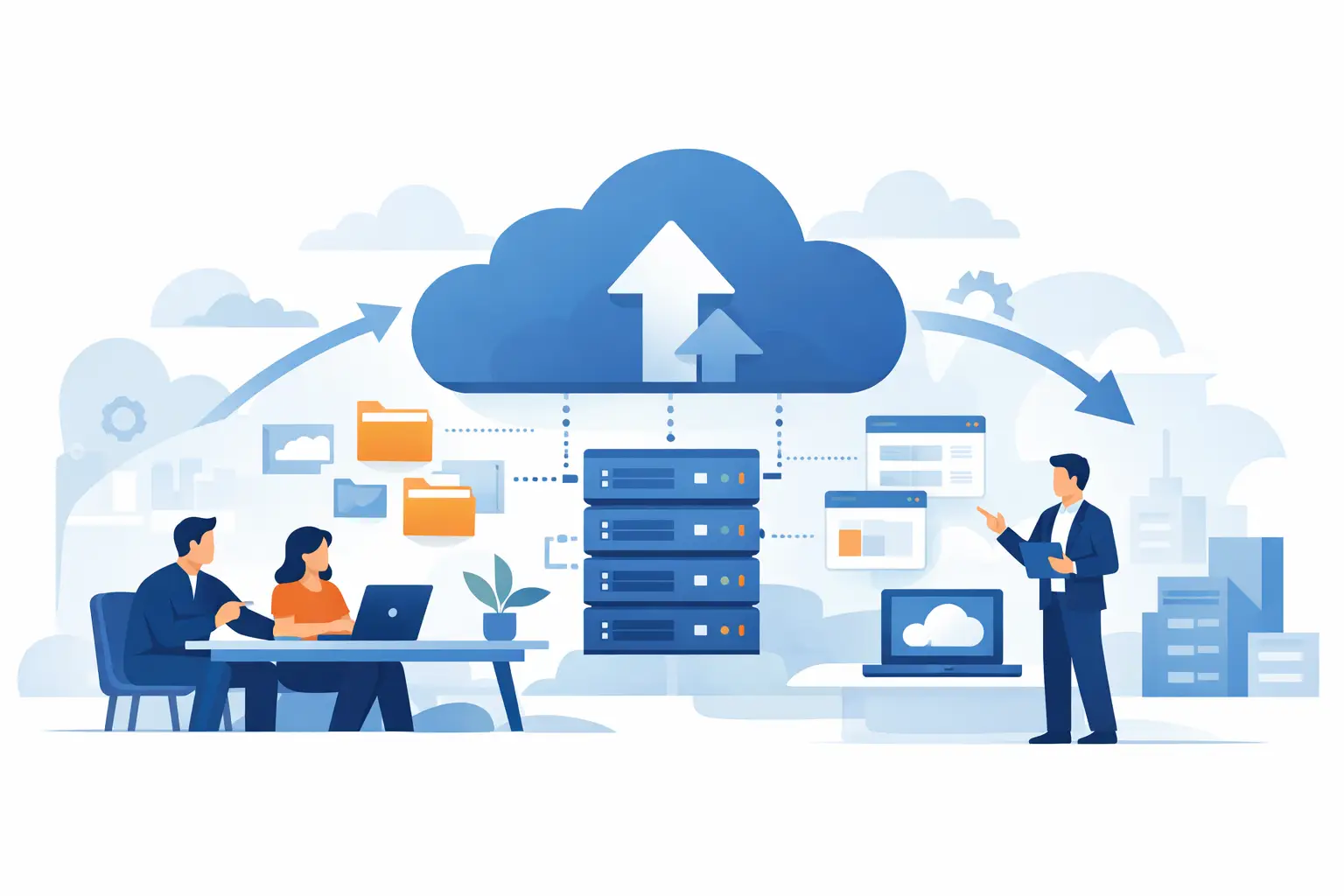
A cloud move can look simple from the outside: move files, log in from anywhere, and stop worrying about the server in the closet. For a small business, though, a rushed move can also mean missing files, confused employees, surprise monthly costs, or an application that stops working on a busy Monday. This cloud migration planning guide helps Greensboro and High Point business owners make the change with fewer unpleasant surprises.
Cloud services can give your team better access to files, easier collaboration, and more options for backup and recovery. But the cloud is not one product, and migration is not just copying data from one place to another. You need a clear picture of what your business uses, what must stay available, and who is responsible for each part of the move.
Start With the Business Problem, Not the Platform
Before choosing a cloud provider or moving a single folder, define what you are trying to fix. Is your current server aging? Are remote employees struggling to access files? Do you need better protection against ransomware? Are you opening a second location, adding staff, or trying to reduce the burden on one person who handles every technology issue?
The answer affects the plan. A business that mainly needs secure shared files may need a different setup than an office that relies on accounting software, a phone system, specialty industry applications, and large design files. Moving everything to the cloud is not automatically the right answer. In some cases, a hybrid setup - with certain systems kept on-site and others moved to cloud services - offers better performance, cost control, or compatibility.
Set a few measurable goals early. For example, you may want employees to access approved files securely from home, restore critical data within a defined time, reduce server maintenance, or limit a migration outage to a weekend. Clear goals help you judge every later decision instead of choosing technology because it sounds impressive.
Build a Cloud Migration Planning Guide Around What You Have
Most migration problems start with an incomplete inventory. Businesses often discover old shared folders, forgotten user accounts, database dependencies, or software licenses after the move has begun. That is when a straightforward project becomes expensive and disruptive.
Take stock of the technology your team uses every day. Your inventory should cover at least these areas:
- Business applications, including accounting, scheduling, point-of-sale, customer management, and industry-specific software
- File storage locations, shared drives, local desktops, external hard drives, and archived records
- Devices and network equipment, including workstations, laptops, printers, servers, firewalls, and internet connections
- User accounts, email addresses, shared mailboxes, permissions, and former employee accounts
- Backups, security tools, compliance requirements, and systems that depend on a particular application or database
For each item, identify the owner, the users, the data it contains, and how much downtime the business can tolerate. A file archive that is rarely accessed may be a lower priority. Your accounting database during payroll week is not.
This process also uncovers clutter. Old installers, duplicate files, inactive accounts, and outdated records do not need to be carried into a new environment simply because they existed in the old one. Cleaning up before migration can reduce storage costs and make the new system easier to manage.
Classify Data by Priority
Not all information needs the same handling. Client records, financial documents, employee information, and legal files may require stricter access controls and retention rules than general marketing materials. Separate critical data from routine data, then decide who needs access and from which devices or locations.
The practical question is not just, “Can we move this?” It is, “Who should be able to use this, and what happens if it is unavailable or exposed?” That mindset improves both security and day-to-day organization.
Choose the Right Migration Approach
There are several ways to move systems and data, and the best option depends on the application, the size of the data set, your internet connection, and your downtime window. A phased migration is often the easiest path for small businesses. It lets you move one workload at a time, test it, and give staff time to adjust.
For example, a business may move email and cloud file collaboration first, then transition backups, then address a line-of-business application or server. This approach reduces the risk of one large cutover affecting every department at once. It can take longer, but it gives your team more chances to catch issues early.
A full cutover can make sense when an old server is failing, a lease is ending, or a business needs to switch quickly. In that case, preparation matters even more. Confirm that data is copied, user accounts are ready, devices are configured, and a support person is available during the change.
Avoid assuming that every older application will run well in a cloud-hosted setup. Some software requires specific operating systems, local network access, hardware connections, or vendor approval. Check with the software vendor before finalizing the plan. A little verification now is much easier than trying to restore a mission-critical system after it fails in the new environment.
Plan for Security Before Users Sign In
Cloud services can improve security, but only when they are configured and monitored properly. A cloud account with weak passwords, broad permissions, and no backup is still a risk. In fact, it can create a larger one because employees can often reach it from more places.
Start with multi-factor authentication for email, file access, administrator accounts, and other sensitive tools. Review who has administrative privileges and remove access for people who no longer need it. Use individual accounts rather than shared passwords so activity can be traced and access can be removed quickly when staffing changes.
Backups deserve their own plan. Cloud storage is not always the same thing as a true backup. If a file is deleted, encrypted by ransomware, or changed incorrectly, those changes can sometimes sync across the system. Make sure critical data has protected backups with reasonable retention periods and that someone knows how to restore it.
Your migration plan should also include device security. A well-configured cloud environment cannot fully protect a laptop with outdated software, no screen lock, or an infected browser. Keep operating systems and security tools current, and establish clear expectations for personal devices if employees use them for work.
Test the Move With Real Workflows
A migration is not complete when the files appear in a new folder. It is complete when employees can do their jobs without creating new workarounds. Testing should use real tasks: opening a large customer file, sharing a document with the right person, printing from a cloud-based application, processing an invoice, accessing email from a mobile device, and restoring a deleted file.
Choose a small pilot group with different roles. Include someone who works with detailed files, someone who works remotely, and someone who depends on a core application every day. Their feedback will reveal issues that a technical checklist may miss, such as slow access, unclear folder structure, missing permissions, or a confusing login process.
Document the final setup in plain language. Employees should know where approved files belong, how to request access, how to report suspicious messages, and who to call when they cannot sign in. A short training session and simple written instructions can prevent many support calls after launch.
Schedule the Cutover and Keep a Rollback Option
Pick a migration window that respects the way your business operates. A restaurant, medical office, contractor, retailer, and professional services firm all have different busy periods. Schedule major changes when the impact is lowest, but do not underestimate the time needed for validation afterward.
Before the cutover, communicate what will change, when it will happen, and what employees should do. Be specific. Tell them whether they need to save work, sign out of an application, use a new password, or avoid editing shared files during a certain period. Unclear communication is one of the fastest ways to create duplicate files and confusion.
Keep the old environment available until the new one has been tested and approved, when practical. That does not mean running two systems forever. It means having a reasonable fallback if an application, permission, or data transfer does not behave as expected. Define the decision point for rolling back before the migration begins, not while people are waiting to work.
Get Help When the Details Outgrow the Calendar
Business owners should not have to become cloud engineers to make a responsible technology decision. A local IT partner can assess your current setup, coordinate with software vendors, prepare devices and accounts, monitor the transition, and remain available after the move. NerdsToGo Greensboro can help small businesses turn a cloud project into a practical plan built around uptime, security, and the way their teams actually work.
The best cloud migration is rarely the flashiest one. It is the one your employees can use confidently on Monday morning, your business can afford over time, and your team can recover from when something goes wrong. Start with a clear inventory, move deliberately, and keep dependable support close by.
Need IT help in Greensboro?
Talk to your local NerdsToGo team.