
Computer Virus Removal Greensboro Can Count On
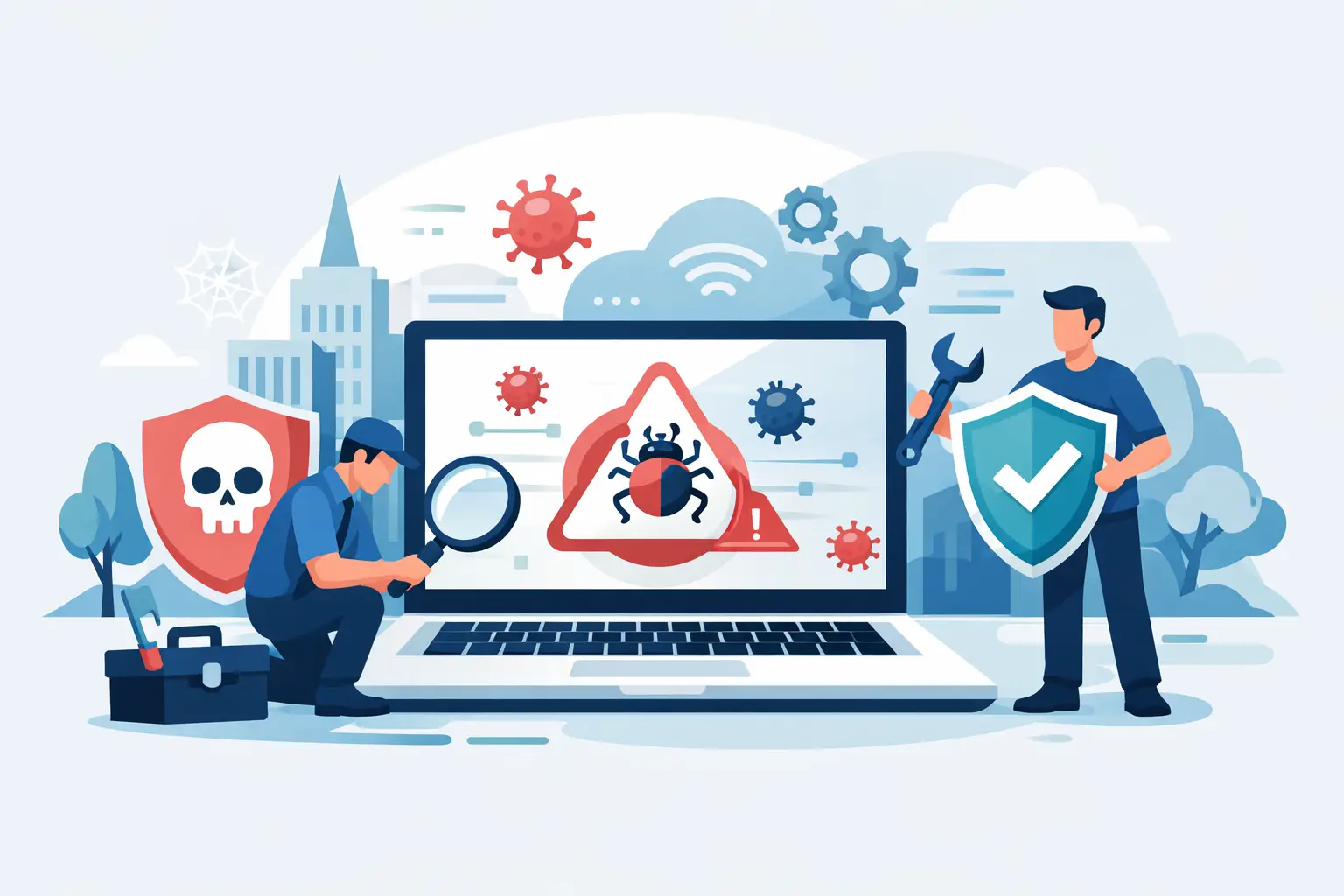
A computer that suddenly floods you with pop-ups, redirects every web search, or runs painfully slow is not just annoying. It may be putting your passwords, personal photos, banking information, and work files at risk. When you need computer virus removal Greensboro residents can rely on, the goal should be more than making a warning message disappear. The real job is finding the cause, removing it safely, and helping prevent it from coming back.
A virus or other type of malware can affect anyone. It can arrive through a convincing email attachment, a fake shipping notice, an unsafe download, a compromised website, or even a message that appears to come from someone you know. You do not need to be careless for a device to get infected. Cybercriminals count on people being busy, distracted, or simply trying to solve a problem quickly.
Signs Your Computer May Have Malware
Some infections make themselves obvious. Others stay quiet while collecting information or using your computer in the background. A few warning signs deserve attention, especially when several appear at once.
Your computer may take much longer to start, open programs slowly, or run hot when you are not doing anything demanding. Your browser may display unfamiliar toolbars, change its home page, send searches to strange sites, or show ads on pages that normally do not have them. You might also see security alerts demanding immediate payment, programs you do not remember installing, or files that suddenly will not open.
For businesses, the signs can be broader. Employees may be locked out of accounts, shared files may be renamed or encrypted, or email messages may be sent from a company address without the sender's knowledge. These problems can point to ransomware, credential theft, or a compromised email account. Waiting to see whether the issue goes away can turn a manageable repair into a larger interruption.
What to Do Before Computer Virus Removal in Greensboro
If you think a device is infected, start by disconnecting it from Wi-Fi or unplugging its network cable. This can help limit the infection's ability to spread to other devices, shared folders, printers, or cloud-connected accounts. Do not delete files at random or install several free cleanup programs in a rush. Some tools are ineffective, and some fake security programs are malware themselves.
Avoid entering passwords, credit card information, or other sensitive details on the affected computer until it has been checked. If you recently signed in to banking, email, shopping, or work accounts on the device, change those passwords from a different, known-safe device. Start with your email password, since email is often the key to resetting passwords for other accounts.
If a pop-up claims to be from Microsoft, Apple, your internet provider, or a security company and gives you a phone number to call, do not call it. Legitimate companies do not typically lock your screen and demand payment or remote access through a surprise browser alert. Close the browser if possible. If you cannot, shut down the computer and get help before taking further action.
Why Removal Is More Than Running a Scan
A good malware scan is useful, but it is only one part of a proper cleanup. Some threats hide in browser extensions, startup settings, scheduled tasks, or unwanted software that installs alongside a free download. Others steal saved browser passwords or create new administrator accounts. Ransomware can encrypt files and leave them unusable even after the malicious program is removed.
That is why professional virus removal generally includes examining how the infection got in, identifying suspicious programs and settings, removing malicious files, and checking the device for signs of continuing compromise. Depending on the infection, the technician may also recommend browser cleanup, operating system updates, security software adjustments, account password changes, or data recovery steps.
There is a trade-off to consider. A deep cleanup can often restore a computer without erasing personal files, but a severely compromised system may be safer to back up carefully and reinstall. That decision depends on the type of malware, the condition of the operating system, and whether important data is already protected. Clear advice matters here. You should understand what is being done, why it is recommended, and what it means for your files.
Data Safety Comes First
Photos, school projects, tax records, customer documents, and work files are often the biggest concern after an infection. If the files are still accessible, a technician can help determine what can be backed up safely before repair work begins. Not every file should be copied without review, since infected executable files or compromised downloads can carry the problem to a new location.
If ransomware has encrypted files, avoid paying immediately or repeatedly attempting random fixes. Payment does not guarantee recovery, and it can encourage further scams. A professional assessment can help identify whether files are recoverable from backups, cloud version history, recovery tools, or other available options.
Protecting Your Device After Malware Removal
Once the immediate threat is gone, the next step is making the computer less attractive to the next threat. This does not require becoming an IT expert. It requires a few practical habits that fit how you actually use your devices.
Keep the operating system, web browser, and major programs updated. Updates often fix security weaknesses that malware uses to get in. Use reputable security software and let it update automatically. Be cautious with unexpected attachments, especially files asking you to enable macros, sign in urgently, or review an invoice you were not expecting.
Strong, unique passwords are also essential. Reusing one password across email, shopping, social media, and work accounts turns one stolen password into a much bigger problem. A password manager can make unique passwords more realistic to maintain, and multi-factor authentication adds another layer of protection when someone gets hold of a password.
Backups provide the best fallback when hardware fails, files are deleted, or ransomware strikes. For many households, a combination of cloud backup and an external drive works well. For businesses, backup planning should also address how quickly files and systems need to be restored, who can access the backups, and whether those backups are protected from the same attack.
When Local Help Makes Sense
Some minor browser issues can be resolved with a careful cleanup and updated security settings. But local support is the better choice when the device will not start normally, files are missing or encrypted, pop-ups prevent normal use, accounts may be compromised, or the problem keeps returning after a scan.
For a home computer, timely help can mean the difference between a frustrating afternoon and losing access to family photos or financial accounts. For a small business, it can mean keeping staff productive and preventing one infected computer from disrupting shared files, email, or customer information.
NerdsToGo Greensboro can assess the device, explain the issue in plain language, and recommend the most practical path forward - whether that means malware removal, data recovery, security improvements, or a larger plan for protecting connected business systems. There is no benefit in making a stressful technology problem harder to understand.
If your computer is acting suspiciously, trust that instinct. Disconnect it, protect your accounts from another device, and get a clear assessment before a small warning becomes a bigger loss.
Need IT help in Greensboro?
Talk to your local NerdsToGo team.