
Home WiFi Troubleshooting in Greensboro Homes
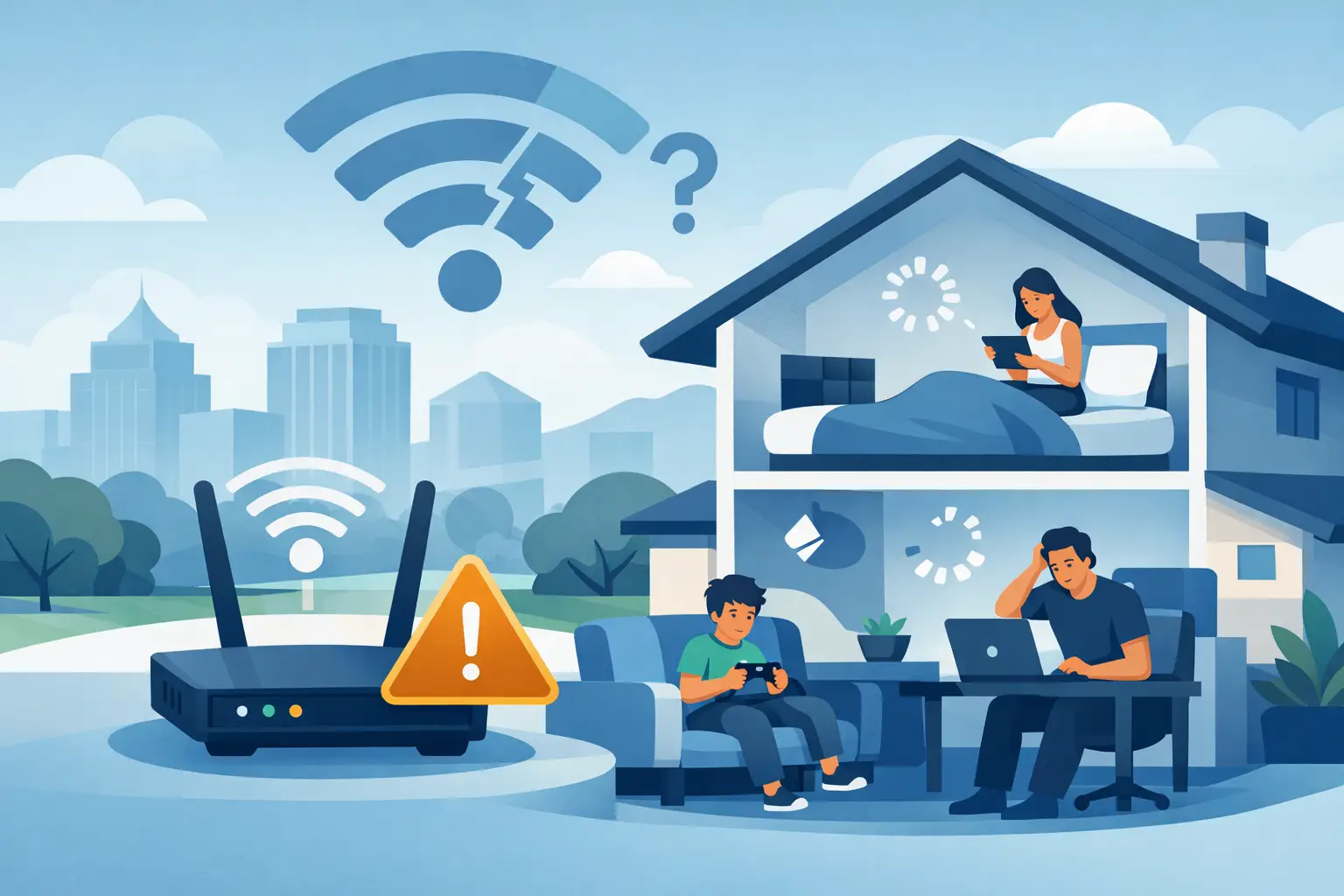
A video call freezes just as you need to speak. Your teenager’s game disconnects in the middle of a match. The smart TV spins endlessly while the router sits three rooms away with every light turned on. Those are familiar reasons homeowners look for home wifi troubleshooting Greensboro support - and they do not always mean you need to buy a new internet plan.
Home WiFi problems usually come down to one of three things: the internet service reaching your house, the WiFi signal moving through your home, or a particular device having trouble connecting. Knowing which one is failing can save time, money, and a lot of restarting equipment that was not the problem in the first place.
Start With the Problem You Can Actually See
Before changing settings, notice where and when the issue occurs. If every device in the house is offline, the likely cause is your provider, modem, router, or a loose connection. If one laptop cannot connect while phones and TVs work normally, focus on that laptop instead of the whole network.
Location matters, too. A weak signal only in the upstairs bedroom, garage, or back patio points to WiFi coverage. A connection that drops everywhere at the same time may point to the modem, router, or internet provider. This simple distinction keeps a frustrating problem from turning into a guessing game.
Run a quick speed test near the router, then repeat it where the connection feels slow. If speeds are good beside the router but much worse in another room, your internet plan is probably not the main issue. Your home’s WiFi coverage is.
Home WiFi Troubleshooting Greensboro: Check the Basics First
The basic checks are basic for a reason. They solve many real problems, especially after a power flicker, a service outage, or an automatic router update.
First, check whether your internet provider has reported an outage in your area. If there is one, resetting your equipment will not restore service sooner. Then look at the modem and router. Make sure power cords and network cables are fully seated, and check whether warning lights are red, amber, or blinking in an unusual pattern.
Restart the equipment in the right order. Unplug the modem and router, wait about 30 seconds, plug the modem back in, and allow it to fully reconnect. Then power up the router and give it a few minutes to broadcast WiFi again. Restarting clears temporary connection errors, but repeated restarts are not a long-term fix. If you need to reboot weekly, something else needs attention.
Finally, try connecting with an Ethernet cable if your computer has a port or adapter. A wired connection that works while WiFi does not tells you the internet service is reaching the house. The issue is likely the wireless network, its placement, or its settings.
Why Good Internet Can Still Feel Slow
Internet speed and WiFi signal are related, but they are not the same thing. Your provider may deliver plenty of speed to the modem, yet the connection can still struggle across a larger home. Brick, plaster, metal ductwork, fireplaces, mirrors, appliances, and even dense furniture can reduce or redirect wireless signals.
Router placement is one of the most overlooked fixes. A router tucked inside a cabinet, placed on the floor, or hidden behind a television has to work harder than one placed in an open, central spot. If possible, keep it elevated and away from cordless-phone bases, baby monitors, microwaves, and other electronics that can create interference.
Many homes also have two WiFi bands: 2.4 GHz and 5 GHz. The 2.4 GHz band generally reaches farther and handles walls better, but it is often more crowded and may be slower. The 5 GHz band can offer better speed nearby but loses strength faster with distance. Neither is automatically better. A smart TV near the router may benefit from 5 GHz, while a doorbell camera at the edge of the property may connect more reliably on 2.4 GHz.
Fix Dead Zones Without Buying the Wrong Gear
A WiFi extender can help a small dead zone, but it is not a cure for every coverage problem. Extenders need a reasonably strong signal from the main router. Put one too far into the dead zone, and it only repeats a weak connection. Put it halfway between the router and the problem area instead.
For larger homes, multi-story layouts, or homes with a lot of brick and dense interior walls, a mesh WiFi system can be the better answer. Mesh systems use multiple access points to spread coverage more evenly. They cost more than a basic extender, and the placement of each node still matters, but they are often easier to manage than a patchwork of separate networks.
An access point connected by Ethernet can be an even stronger option when a network cable can be run to the far side of the home. This approach takes more planning, but it avoids the performance loss that can happen when WiFi devices have to relay signals wirelessly.
When One Device Is the Trouble Spot
If your phone works but your computer does not, forget the network on the problem device and reconnect using the current password. Confirm that airplane mode is off, the device is not connected to an old guest network, and its software is up to date.
Older laptops and tablets may not support newer WiFi standards well. Their wireless adapters can also become unreliable over time. Before replacing the entire router, test the device close to it. If that device remains slow while newer devices work well in the same spot, the device may need a repair, driver update, or WiFi adapter replacement.
Remote workers should also consider whether the problem is the connection or the work application. A VPN, cloud backup, video conference, or large file upload can use substantial bandwidth. If calls become choppy only when someone else starts gaming or streaming in 4K, your network may need better traffic management, more available bandwidth, or a wired connection for the most demanding device.
Secure the Network While You Are Fixing It
An unsecured or outdated network can be slow, unreliable, and risky. Change the router’s default administrator password if it is still in place. Use a unique WiFi password, enable WPA2 or WPA3 security when available, and remove devices you no longer recognize or use.
Router firmware updates matter as well. They can correct bugs, improve compatibility, and address security issues. Still, do not change advanced settings at random. Features such as channel selection, band steering, and quality-of-service controls can help in the right situation, but incorrect changes can make a stable network harder to troubleshoot.
If you have smart home devices, give them a little extra attention. Older smart plugs, cameras, printers, and thermostats may only connect on 2.4 GHz. Separating network names by band can make setup easier in some homes, while a single combined network is more convenient in others. The right choice depends on the equipment you own and how reliably it stays connected.
When It Is Time to Call a Local Nerd
Some problems are worth escalating sooner rather than later. Call for help if your connection drops several times a day, the router keeps overheating or resetting, WiFi is weak in rooms where you need it for work or school, or you are unsure whether a device on your network belongs there.
A technician can test the connection coming into the home, inspect cable and router health, identify interference, recommend practical placement, and help set up mesh coverage or wired access points when needed. That is more useful than buying another router based only on the biggest speed number on the box.
NerdsToGo Greensboro can help homeowners sort out whether the fix is a device repair, a better home network layout, a security update, or a conversation with the internet provider. You should be able to use your home technology without standing in one corner of the kitchen to keep a signal. When the usual resets stop working, a clear diagnosis is the fastest way to get your connection back where it belongs.
Need IT help in Greensboro?
Talk to your local NerdsToGo team.