
How to Enable Multifactor Authentication Safely
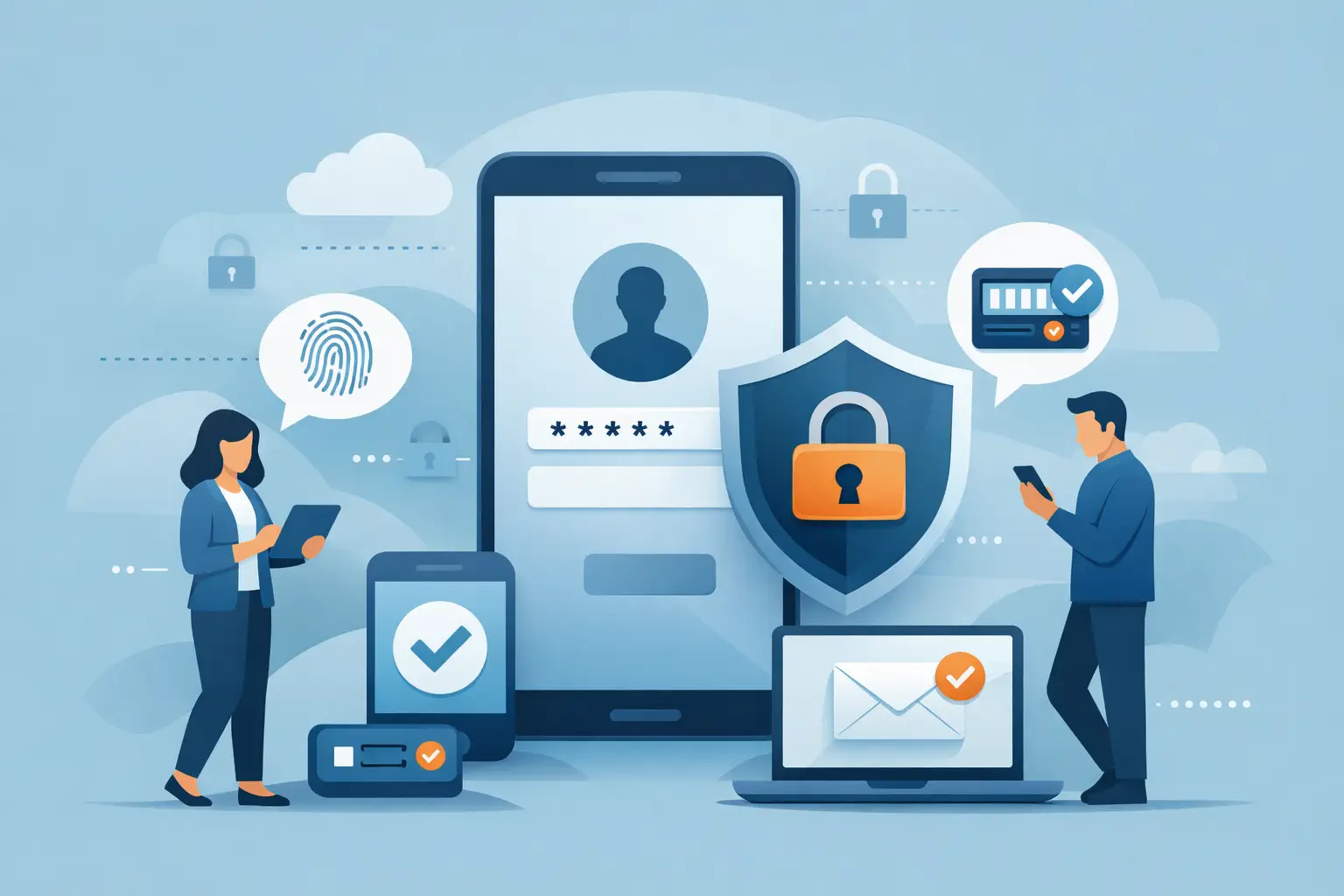
A stolen password should not be enough to give someone access to your email, bank account, customer records, or work files. Learning how to enable multifactor authentication adds a second check at sign-in, making it much harder for an outsider to get in even if they know your password.
For most people, setup takes only a few minutes per account. The bigger challenge is choosing the right method, saving backup options, and making sure your household or staff can still get in when a phone is replaced, lost, or unavailable. A little planning now can prevent a stressful lockout later.
What multifactor authentication actually does
Multifactor authentication, often shortened to MFA or 2FA, requires more than one way to prove you are you. Your password is one factor - something you know. A prompt on your phone, a temporary code, a fingerprint, or a physical security key provides another factor.
Think of it like locking both the front door and a separate gate. If someone guesses or steals the first key, they still cannot walk right in.
MFA is especially useful because passwords get exposed in ways that are not always obvious. A company may experience a breach, a fake email may trick someone into entering credentials, or the same password may be reused on an old account. MFA does not make an account invincible, but it blocks a large number of common account takeovers.
Choose your verification method before you turn it on
Most services offer several MFA choices. The best option depends on the account, your comfort level, and how much disruption a lost phone would cause.
Authenticator apps are a strong everyday choice. Apps such as Google Authenticator, Microsoft Authenticator, Authy, and 1Password generate short-lived codes on your phone. They work without cellular service and are generally safer than text-message codes. Some apps also support secure backup or device transfer, but review those settings before relying on them.
Push notifications can be convenient. You receive a message asking whether you are trying to sign in, then approve or deny it. Only approve a request when you just attempted to log in. If prompts appear unexpectedly, deny them and change your password. Repeated prompts can be an attempt to wear you down until you click approve.
Text-message codes are better than having no MFA at all, but they are not the first choice for sensitive accounts. Criminals can sometimes take over a phone number through a SIM-swap scam. Use text messages if that is the only practical option, then consider moving important accounts to an authenticator app or security key later.
Physical security keys are small devices that plug into a computer or connect wirelessly to a phone. They offer excellent protection from fake sign-in pages and are a smart choice for business owners, administrators, financial accounts, and anyone who handles sensitive information. The trade-off is simple: you need to keep track of the key and have a backup key or recovery plan.
How to enable multifactor authentication on your accounts
The exact labels vary between services, but the process is similar on email providers, social media, cloud storage, banks, shopping sites, and workplace platforms.
Start with the accounts that matter most
Do not feel pressured to secure every account in one afternoon. Start with your primary email account. Email is often the reset point for other passwords, so losing it can create a chain reaction.
Next, protect banking and payment apps, password managers, cloud file storage, workplace email, social media, and any account holding customer information. If you run a business, add your accounting system, payroll platform, remote access tools, and administrator accounts near the top of the list.
Find the security settings
Sign in to the account using the official app or website. Avoid using a link in an unexpected email or text message, even if it looks legitimate. Go to Account, Profile, Privacy, Login, or Security settings. Look for wording such as “Two-Step Verification,” “Two-Factor Authentication,” “Multi-Factor Authentication,” or “Login Verification.”
Select the option to turn it on. The service will normally ask you to confirm your password before it lets you continue.
Connect your chosen method
If you select an authenticator app, the site usually displays a QR code. Open the authenticator app, choose the option to add an account, and scan that code. The app will generate a six- or eight-digit code. Enter the current code on the website to confirm setup.
For push notifications, install the provider’s approved authentication app and follow the prompts to register your device. For text messages, enter your phone number and confirm the code sent to you. For a security key, insert or connect the key when prompted and follow the device instructions.
Once MFA is activated, sign out and back in once while you are still at home or in the office. This quick test confirms that the method works before you need it during a busy day.
Save recovery options safely
Many services provide recovery codes when MFA is enabled. These one-time codes can get you back into an account when your phone is lost, damaged, or replaced. Save them somewhere separate from the device that generates your codes.
For a household, a printed copy in a secure location may be practical. For a business, use an approved password manager or another protected process that authorized leaders can access. Do not leave recovery codes in an unprotected notes app, on a sticky note at your desk, or in an email account protected by the same MFA method.
Also review recovery email addresses and phone numbers. Remove old contact details, former employees, and numbers you no longer control. An outdated recovery option can become a back door into an otherwise well-protected account.
Avoid the mistakes that weaken MFA
MFA works best alongside good password habits. Every important account needs a unique, long password. A password manager can create and remember these passwords, reducing the temptation to reuse a familiar one.
Be careful with “remember this device” prompts. It can be reasonable to trust a personal computer stored securely at home, but do not select that option on a shared family device, public computer, hotel business center, or someone else’s phone.
For businesses, avoid sharing one login among several employees. Individual accounts make it easier to remove access when roles change and to identify unusual activity. Require MFA for everyone, including managers and IT administrators. A company is not protected if only a few employees use it.
Finally, remember that MFA prompts can be faked. A scammer may call, text, or email pretending to be from a bank, software provider, or coworker and ask for a code. Never share a verification code with another person. Legitimate support teams do not need your one-time code to help you.
Plan for a new phone or an employee departure
Changing phones is one of the most common MFA trouble spots. Before erasing or trading in an old phone, transfer authenticator accounts to the new device, verify that the new phone receives prompts, and keep recovery codes available. If your authentication app supports encrypted backup, make sure you understand how to restore it and what account protects that backup.
Business owners should include MFA in onboarding and offboarding. When a new employee starts, help them enroll their approved device and explain how to report a lost phone. When someone leaves, remove their access promptly, review shared tools, and confirm that recovery methods are not still tied to their personal email or phone number.
If you are unsure which accounts need MFA, which option fits your setup, or how to recover from a locked account, a local technician can help you build a practical plan without burying you in jargon. NerdsToGo Greensboro can help homeowners and small businesses secure devices and accounts while keeping daily work manageable.
The best time to set up MFA is before you receive a suspicious sign-in alert. Take ten minutes to protect your primary email account this week, keep the recovery information somewhere safe, and let that one smart habit make the rest of your digital life a little less risky.
Need IT help in Greensboro?
Talk to your local NerdsToGo team.