
How to Fix Tablet Charging Problems at Home
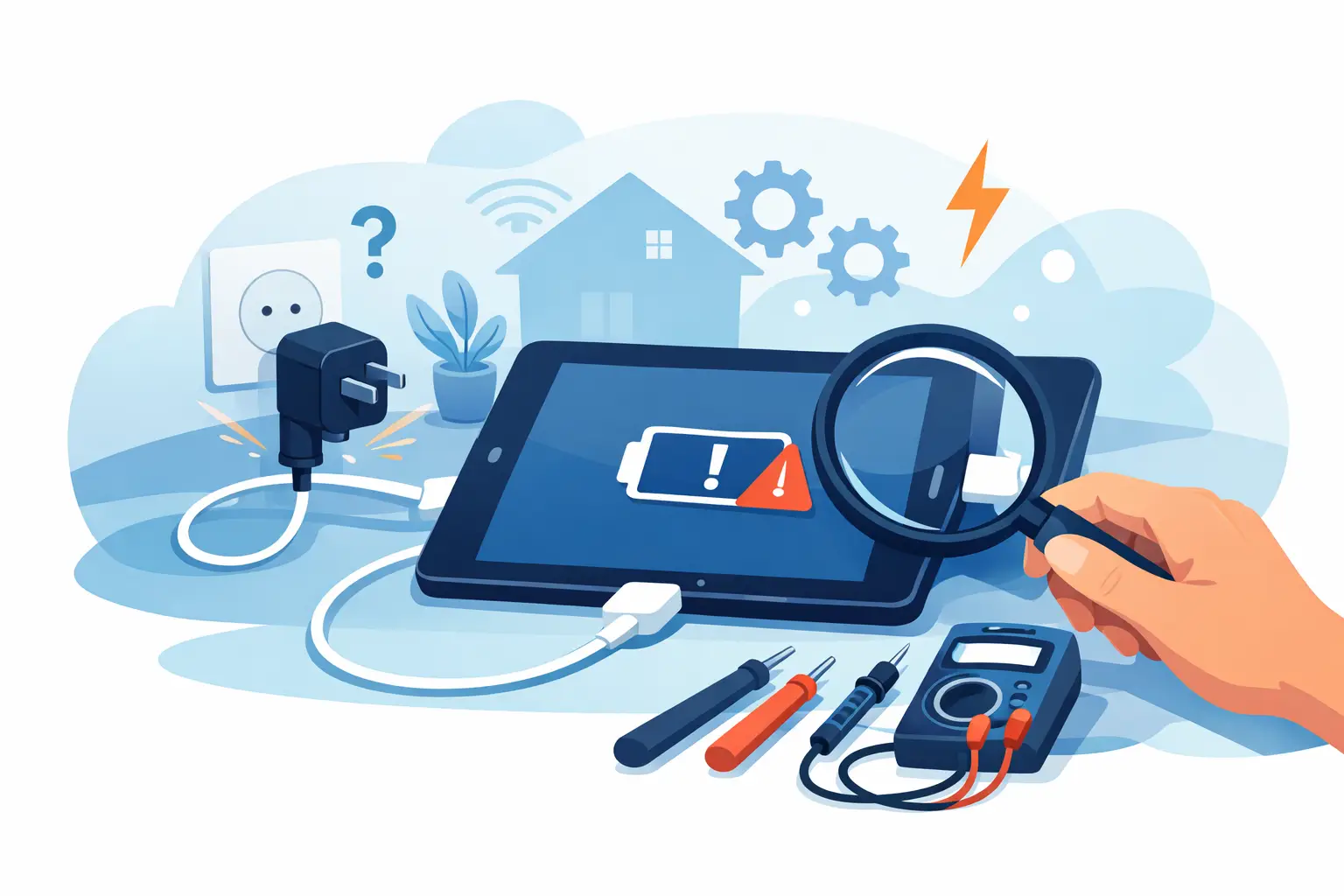
A tablet that will not charge can turn a school night, workday, or streaming session into a headache fast. Before you assume the battery is finished, learning how to fix tablet charging usually starts with a few simple checks. The issue may be a worn-out cable, a blocked charging port, a weak power source, or software that has temporarily stopped responding.
The good news is that many charging problems have a practical fix. The key is to troubleshoot carefully and avoid forcing a connection or using damaged accessories. If your tablet gets unusually hot, smells burnt, has a swollen screen or case, or has been exposed to liquid, stop charging it and arrange professional help instead.
Start With the Charging Basics
It sounds obvious, but the charging cable and wall adapter cause a large share of tablet charging problems. Cables bend near the connector, adapters can fail without visible damage, and low-quality replacements may not provide enough power for a larger tablet battery.
Try your tablet with a different cable and adapter that you know work properly. Use a wall outlet rather than a computer USB port, power strip, or car charger while testing. Many tablets need more power than those sources can consistently provide, especially when the battery is very low.
Leave the tablet plugged in for at least 20 to 30 minutes before deciding it is not charging. A completely drained battery may show a blank screen for several minutes before the charging symbol appears. During that time, avoid repeatedly unplugging it, pressing buttons, or switching outlets. Give it a chance to recover.
Check the outlet, too. Plug in a lamp or another device to make sure the outlet is working. If your charger has a removable USB cable, inspect both ends for looseness, bent metal, fraying, or discoloration. Replace a damaged cable or adapter rather than trying to tape it together.
How to Fix Tablet Charging Step by Step
Once you have ruled out the obvious power source issues, focus on the tablet itself. Work through these steps in order so you can identify what changed.
Inspect and clean the charging port
Pocket lint, dust, and small debris can pack into a tablet charging port and prevent the cable from making a proper connection. Shine a flashlight into the port. If you see buildup, power the tablet off first.
Use a dry, soft brush or a wooden or plastic toothpick to gently loosen debris. Do not use a metal pin, paper clip, knife, or anything wet. Metal can damage the tiny contacts inside the port, and liquid can create a much bigger repair issue.
After cleaning, plug the cable in gently. It should fit securely without needing to be held at an angle. A cable that slips out, feels loose, or only charges when positioned a certain way can point to a worn or damaged port. That repair usually requires a technician because the port is attached to internal components.
Restart a frozen tablet
Sometimes the tablet is charging, but the screen is frozen or the battery indicator is not updating correctly. A restart can clear a temporary software problem.
For many tablets, hold the power button until the power options appear, then restart the device. If the screen does not respond, try a forced restart. The button combination varies by brand and model, but it commonly involves holding the power button with one of the volume buttons for several seconds.
Once it restarts, keep it connected to a reliable charger and watch for the battery icon. If the percentage begins rising, the charging system may be fine and the problem may have been software-related.
Remove heat and heavy use from the equation
Tablets can slow down or pause charging when they are too hot. This often happens when the device is charging under a pillow, sitting in direct sunlight, running a game, or using a video call while connected to power.
Unplug the tablet and let it cool on a hard, open surface. Remove a thick case if it is trapping heat. When the device feels normal again, connect it to a working charger and leave the screen off. If it charges normally when cool and idle, heat management may be the main issue.
Check for software and battery settings
If your tablet turns on, check whether it needs a system update. Updates can correct bugs that affect battery reporting, charging behavior, or app activity. Also look at battery settings for features such as optimized charging, battery protection, or charging limits. These settings can intentionally stop charging around 80 percent to extend long-term battery life.
Review which apps are using the most battery power. A malfunctioning app can drain power as quickly as the charger replaces it, making it look as though the tablet is not charging. Close unnecessary apps, restart the tablet, and test again with the screen off.
Signs the Battery May Be the Problem
Every rechargeable battery wears down over time. A tablet that is several years old may still charge, but it may lose power quickly, shut down unexpectedly, or take much longer to reach a full charge. Those are common signs of battery aging.
A worn battery does not always mean the tablet needs to be replaced. Battery replacement can be a sensible option when the screen, performance, and storage still meet your needs. The decision depends on the device's age, its repair cost, and whether it will continue receiving security updates.
Do not ignore physical warning signs. If the tablet's screen is lifting from the frame, the back cover is bulging, or the device becomes hot even when it is not in use, the battery could be swollen. Stop using and charging it. A swollen battery needs prompt professional attention and should never be punctured or pressed back into place.
When a Charging Problem Needs Professional Repair
At-home troubleshooting has limits, particularly when the charging port, internal battery, charging circuit, or motherboard may be damaged. Professional repair is the safer route when the tablet was dropped, exposed to water, has visible port damage, or still will not charge after testing a known-good cable, adapter, and outlet.
It is also worth getting help if the tablet only charges at a certain angle, repeatedly connects and disconnects, or shows a charging icon but never gains battery percentage. Those symptoms can look minor at first, but continued use may put extra strain on the charging port or cable.
For Greensboro and High Point residents, NerdsToGo Greensboro can help identify whether the issue is an accessory, port, battery, or internal hardware problem. A clear diagnosis helps you decide whether repair makes sense before spending money on parts you may not need.
A tablet should be useful, not something you have to coax back to life every time the battery gets low. Start with a dependable charger, a clean port, and a patient restart. If those steps do not solve it, getting a knowledgeable Nerd to take a closer look can save time, protect your device, and get you back to work, school, or relaxing at home.
Need IT help in Greensboro?
Talk to your local NerdsToGo team.