
Is Public WiFi Safe? What Greensboro Users Need
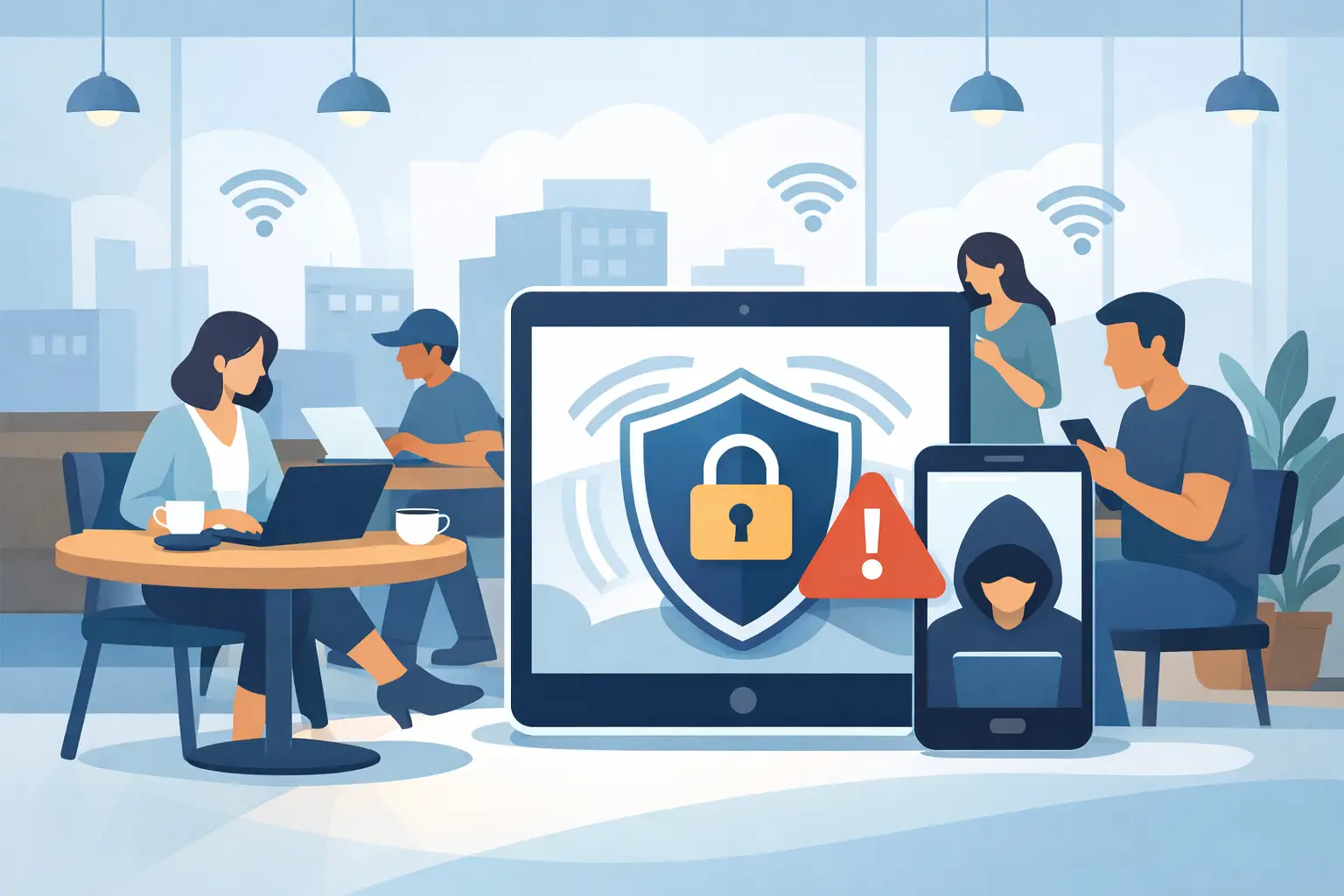
You are waiting for an appointment, settling into a coffee shop, or working between classes when your phone offers a free network with a familiar name. Connecting takes one tap. But is public WiFi safe? Sometimes, for low-risk browsing. For anything involving passwords, money, work files, or personal information, it deserves a much more careful answer.
Public WiFi is convenient because it is shared. That same convenience can create opportunities for scammers, poorly secured networks, and unwanted snooping. You do not need to avoid every hotel lobby, airport, library, or cafe network forever. You do need to know what a public connection can and cannot be trusted to do.
Is Public WiFi Safe for Everyday Use?
Public WiFi is not automatically dangerous, and a properly managed guest network can offer reasonable protection. Libraries, universities, hotels, and businesses may use modern security settings and separate guest traffic from their own systems. Still, you usually cannot verify how the network is configured or who else is connected.
Think of public WiFi as a public place, not a private office. Reading the news, checking a restaurant menu, looking up directions, or streaming a video is usually lower risk. Logging into your bank, entering a credit card number, accessing a work dashboard, or downloading confidential files is higher risk.
The biggest issue is not that someone can magically take over your device the moment you connect. The risk is more practical. A criminal may try to get you onto a fake network, capture information sent through an unsafe connection, or take advantage of a device that is out of date and exposed to the local network.
The Risks Hiding Behind “Free WiFi”
A network name is not proof that the network is legitimate. Someone can create a hotspot called “Airport Free WiFi,” “Coffee Shop Guest,” or a name that closely resembles the real business network. This is often called an evil twin network. It looks convincing because that is the point.
Once connected, you may be sent to a fake sign-in page designed to collect an email address, password, phone number, or payment details. In other cases, the attacker simply hopes you will use the connection for an account that does not have strong security protections.
Older websites and poorly configured apps can also create problems. Most reputable sites now encrypt information through HTTPS, which helps protect data in transit. You can often see this in the padlock indicator in your browser. However, HTTPS does not protect you from every fake website, fraudulent sign-in page, or malicious download. A secure connection to the wrong site is still the wrong site.
Public networks can also expose devices that have sharing features turned on. If your laptop is set to share files, printers, or folders with nearby devices, another person on the same network may be able to see more than they should. This is especially concerning for remote workers carrying business information or families with shared computers full of photos and documents.
How to Tell Whether a Network Is Legitimate
Before you connect, ask the staff for the exact network name. Do not assume the strongest signal or the first option on your device is the official one. At a hotel, confirm whether the network includes a room number or access code. At a coffee shop, ask an employee rather than trusting a sign taped to a table.
Be cautious when a network asks for more information than makes sense. A guest network may ask you to agree to terms of service or enter a simple access code. It should not need your bank login, your email password, or a credit card number just to provide ordinary WiFi access.
Your device may also show whether the network is secured. A password-protected network is generally better than a completely open one, but it is not a guarantee. If everyone in the building has the same password, treat it as a shared environment and keep your activity low risk.
Safer Habits When You Must Use Public WiFi
The best protection is not complicated. It comes down to making a few smart choices before you connect and while you are online.
First, use your phone's cellular connection or personal hotspot for sensitive tasks whenever possible. Mobile data is often the better option for banking, online shopping, medical portals, tax documents, and work systems. If you are a business owner or remote employee, a company-approved hotspot can be a worthwhile investment for travel and off-site work.
Second, keep your devices updated. Security updates fix known weaknesses that criminals may try to exploit. This applies to your computer, phone, tablet, browser, apps, and WiFi router at home. Delaying updates can leave a door open long after the manufacturer has provided a fix.
Third, turn off automatic joining for public networks. Your phone or laptop should not reconnect to a network simply because it recognizes the name. This setting can be especially risky when you have connected to a public hotspot before and an attacker later creates a look-alike version.
Fourth, use strong, unique passwords and enable multi-factor authentication on important accounts. Multi-factor authentication cannot solve every security problem, but it can stop many account takeovers even if a password is stolen. An authenticator app is generally a stronger choice than relying only on text messages, though either is better than using a password alone.
Finally, disable file sharing, AirDrop-style sharing, and printer sharing when you are on a public network. On a Windows computer, choose the Public network profile when prompted. On a Mac, check sharing settings before traveling. These small changes limit what other devices on the same network can discover.
Should You Use a VPN on Public WiFi?
A virtual private network, or VPN, can add a useful layer of privacy by encrypting traffic between your device and the VPN provider. For travelers and remote workers who frequently use public networks, a reputable VPN may be a sensible part of a broader security plan.
It is not a permission slip to ignore everything else. A VPN cannot make a fake login page legitimate, rescue a device infected with malware, or protect you if you voluntarily give a scammer your password. It also may slow your connection, and free VPN services can raise privacy concerns of their own. If you use one, choose a trusted provider and make sure you understand how it works before relying on it during a trip.
For many homeowners, the most practical approach is simple: save sensitive tasks for a trusted home connection or use cellular data. For a business with employees working from cafes, hotels, and customer sites, a managed VPN and clear remote-work security policies can make much more sense.
What Businesses Need to Consider
Public WiFi is not only a personal-device issue. One employee using an unsecured connection to access email, cloud storage, customer records, or accounting software can create risk for the whole organization.
Small businesses should establish clear expectations for remote work. Employees need to know which systems require a VPN, which data should never be accessed on public networks, and who to contact if a device is lost or a suspicious login alert appears. Company laptops should have current security updates, endpoint protection, screen locks, and separate user accounts.
The goal is not to make work harder. It is to reduce the chance that a quick connection at an airport becomes a costly security incident later. Good IT support helps businesses put protections in place that match how their team actually works, rather than handing them a complicated policy nobody follows.
If You Think a Public Network Caused a Problem
Act quickly if you notice unfamiliar account activity, password reset emails you did not request, pop-ups that will not go away, or a device behaving strangely after using public WiFi. Disconnect from the network immediately. Change passwords for affected accounts from a trusted connection, starting with your email account, and review recent sign-ins and financial transactions.
If the device may be infected or business data may have been exposed, do not guess your way through the cleanup. A technician can check for malware, review security settings, protect important files, and help you decide whether further account or network steps are needed.
Free WiFi should make your day easier, not leave you wondering what happened to your accounts. Use it for low-risk tasks, keep sensitive activity on a trusted connection, and get practical help when your device or business needs a security check. When technology feels uncertain, NerdsToGo Greensboro is here to help you Nerd up with clear answers and dependable local support.
Need IT help in Greensboro?
Talk to your local NerdsToGo team.